Controller Compatibility: Check the Game, Device and Connection Together
A controller pairing successfully does not prove that every game will recognize it or support all of its features. Compatibility sits across the controller, operating system, connection method, launcher and individual game. Work through those layers in order rather than installing several mapping utilities at once. This guide is based on official platform references checked for October 18, 2026. It offers a troubleshooting process, not a claim that we tested every controller or that one model works universally.
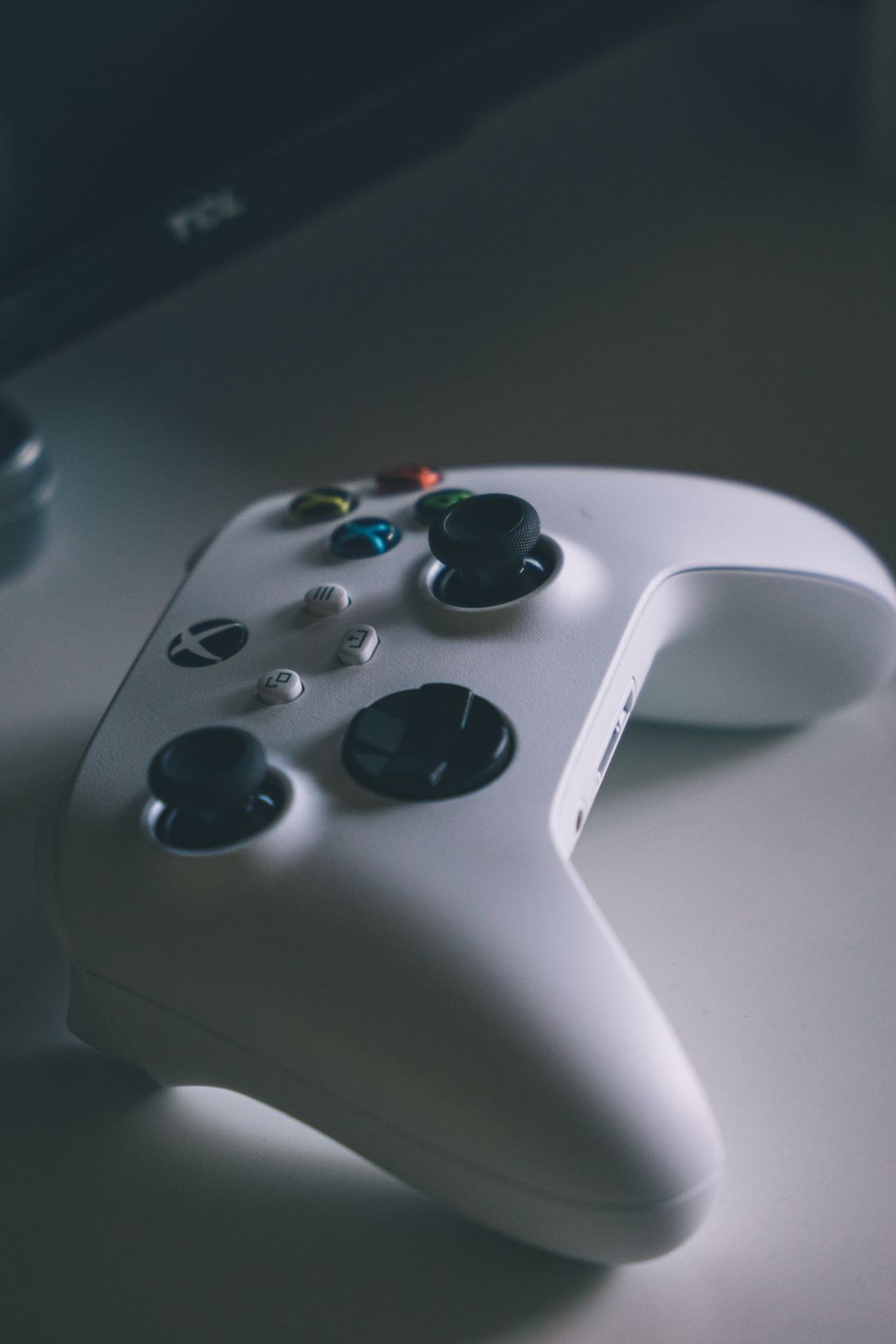
Photo: Mahavir Shah · License. Illustrative stock photography.
Define what compatible means for you
Decide which functions matter: basic movement and buttons, wireless play from the sofa, correct on-screen symbols, headset audio, vibration or specialized haptics. These are separate requirements. A controller can be usable for ordinary input while lacking a particular feature on another platform. Write the game, device and operating system beside the desired functions. For a shared household, also consider whether the player can comfortably reach the controls. Shape preference and accessibility needs should be part of the decision before a popular brand becomes the default choice.
Check official device and game support
Consult the controller manufacturer's support page for the intended operating system and connection method, then read the game's supported-input information. PlayStation's DualSense guidance explicitly notes that support depends on the game and device, with some features requiring particular conditions. Avoid generalizing one compatible game into a platform-wide promise. Store controller labels can help identify candidates, but investigate partial support and any keyboard requirements. A living-room setup is awkward if a player unexpectedly needs to walk over to a computer to dismiss a login box or enter essential text.
Start with one simple connection
For troubleshooting, use a manufacturer-supported cable and port if available, then test basic recognition before adding wireless pairing. Ensure the cable supports the required connection rather than assuming every charging cable carries data. For Bluetooth or another supported wireless route, follow the official pairing sequence for that model. Keep the controller charged and avoid changing several factors simultaneously. If wired play works and wireless play fails, that comparison narrows the question. It does not prove the controller is defective or that an unrelated third-party utility is necessary.
Understand the mapping layer
A launcher or input system may translate buttons into the format a game expects. Steam provides controller-oriented tools and Big Picture navigation, but each game's behavior still needs checking. Begin with the game's intended input route and introduce a mapping change only when it solves a documented problem. Multiple translation programs running together can make diagnosis harder. If one button triggers two actions, return to a simple baseline and inspect active configurations. Save a copy or screenshot of a successful layout so a later experiment can be reversed without reconstructing every binding.
Test ordinary play before advanced features
Use a tutorial or another low-stakes section to check movement, camera, menus, pause and essential actions. Match the on-screen prompt to the physical button rather than guessing from position when symbols differ. Then evaluate optional functions individually. For two players, verify that the game supports the intended local mode and recognizes each controller separately. A system detecting two devices does not establish that a particular game includes local multiplayer. Keep a supported keyboard or remote available during setup, but do not let it hide an unmet requirement for the actual player.
Buy only after the missing requirement is clear
If the existing controller handles the game well, a new one may add little. If you need a specific feature or alternative input arrangement, compare products against that written need and consult official compatibility information. Read return conditions and update requirements before purchasing. Prefer manufacturer firmware and support tools over unknown download sites. When the final arrangement works, record the connection, game settings and any mapping profile. That small record is more useful than a general claim that the controller works on PC, which leaves all the important conditions unstated.
Your working checklist
Checkmarks stay in this browser when storage is available. They do not submit a form or complete a booking.
Put it into practice
- Write the game, platform, connection and specific features you need before changing the setup.
- Confirm manufacturer and game support, then establish one simple recognized connection.
- Test essential actions before introducing mapping tools or advanced feature settings.
- Record the working configuration and replace hardware only when a necessary function remains unsupported.
Before you finish
- Pairing is distinguished from support within the game.
- The cable and operating system meet manufacturer requirements.
- Only intended input-mapping systems are active.
- Menus and essential actions work for the actual player.
- Optional haptics, audio and local multiplayer are confirmed separately.
Common questions
Why does my controller connect but not work in one game?
The operating system recognizing it is only one layer. Check the game's input support and the launcher's configuration for that specific controller and connection.
Are wireless and USB features always identical?
No. Manufacturers can specify different feature support by connection and platform. Check the exact model's documentation before relying on a particular function.
Does full controller support mean every special feature works?
Do not assume that. Confirm the functions you need in the game's and controller maker's documentation, especially specialized haptics or audio connections.