Make TV Dialogue Easier to Follow With a Controlled Audio Check
If speech is hard to follow, first separate the programme, audio track and playback setup. A short comparison can show which setting helps without raising every effect or changing several devices at once.
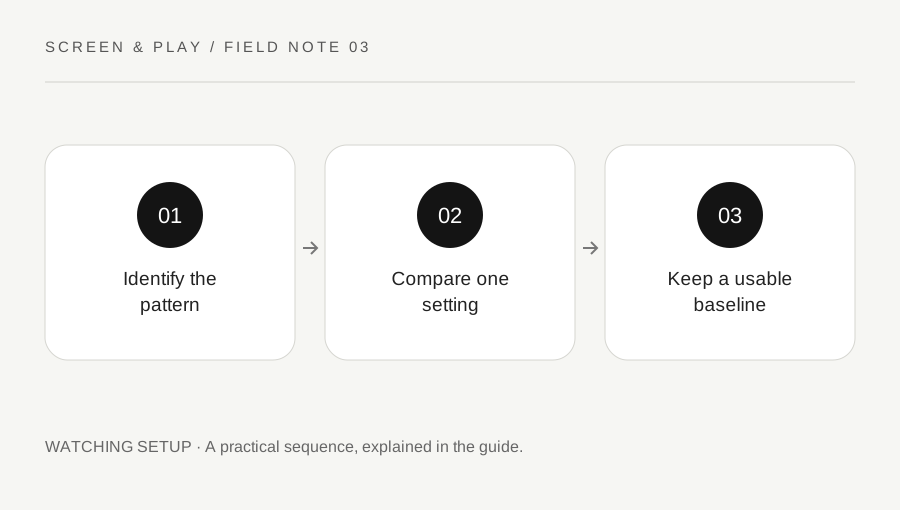
Original explanatory diagram. Examples illustrate a method or decision; they are not claims of personal testing.
Describe what you hear before changing it
Choose a short scene with ordinary conversation and note the problem. Is all sound quiet, are effects much louder than speech, is the wrong language playing, or is the sound out of time with the picture? These are different issues. A dialogue setting will not necessarily solve lip-sync delay or an unavailable language track.
Check another familiar programme at a comfortable level. If only one title is difficult, the mix or selected track may be part of the explanation. If every app has the same problem, look at the shared audio path. Avoid repeatedly turning the volume up during loud scenes just to hear a later quiet line.
Map the playback chain
Write down the source app, streaming device, television and any soundbar, receiver or headphones. Identify where sound is actually coming from. Check the relevant manufacturer guidance for that chain rather than applying a menu path from another model. Features can depend on hardware, software and the app using the playback system.
For an illustrative setup with an Apple TV and television speakers, begin with the supported Apple TV audio options and the TV manual. A different setup using a receiver may have its own processing. Do not force a surround format that equipment does not support. Save the original setting so you can return to it after a comparison.
Compare a dialogue or dynamic-range option
If the equipment offers a supported dialogue enhancement, try one level on the same short scene. Apple describes Enhance Dialogue and Reduce Loud Sounds as distinct options: one emphasises speech, while the other reduces the difference between louder and quieter sounds. Availability and behaviour vary across hardware and content, so check the current guide.
Keep the listening level comparable and change only one option at a time. Note whether speech becomes clearer and whether music or effects change in a way you dislike. Stronger processing is not automatically better. A useful choice is the lowest intervention that helps your particular viewing arrangement, with a clear route back to the original mix.
Check placement and the listening situation
Look for simple physical obstacles such as an object directly in front of the speaker path, while following the equipment installation instructions. Do not cover vents or reposition mounted equipment unsafely. Background noise and the distance from the screen can also affect how well you follow speech. Compare in the ordinary room conditions where you watch.
Headphones may be a useful supported alternative for an individual viewer, but confirm comfortable volume and the connection method. Captions can also provide another way to follow dialogue when available. Treat these as options for your needs, not proof that a particular device has failed. Persistent hearing concerns belong with an appropriate professional rather than an entertainment settings guide.
Keep the result specific and reversible
Record the programme, scene and setting that helped. If a default changes all playback, check a second title before keeping it. A setting suited to late-night viewing may not be your preference for a music performance. Know how to adjust it during playback or restore the default through the supported menu.
If the original issue was delay, distortion or missing channels, use the relevant manufacturer troubleshooting guide instead of continuing to alter dialogue enhancement. Keep model names and exact symptoms for support. A controlled check gives you a useful baseline and a clearer problem description; it does not establish a universal best audio preset for every television and room.
A practical checklist
Choices are saved in this browser. Reset them here or clear this site’s browser storage.
Questions that come up
Should I choose the strongest dialogue setting?
Try the available levels on the same scene. Strong processing may change the original mix more than you want.
Is Reduce Loud Sounds the same as dialogue enhancement?
No. Consult the equipment guide for the purpose and availability of each option.
Will one setting fix every app?
Not necessarily. App support, hardware and content can differ, so test the actual playback route.
References & scope
Background references checked on 18 October 2026. Worked examples and diagrams are original teaching material.