Pause Before Choosing a Steam Cloud Save Conflict
A cloud conflict asks you to choose between different data states. Stop long enough to identify which progress belongs to each device before selecting an option that may replace the other version.
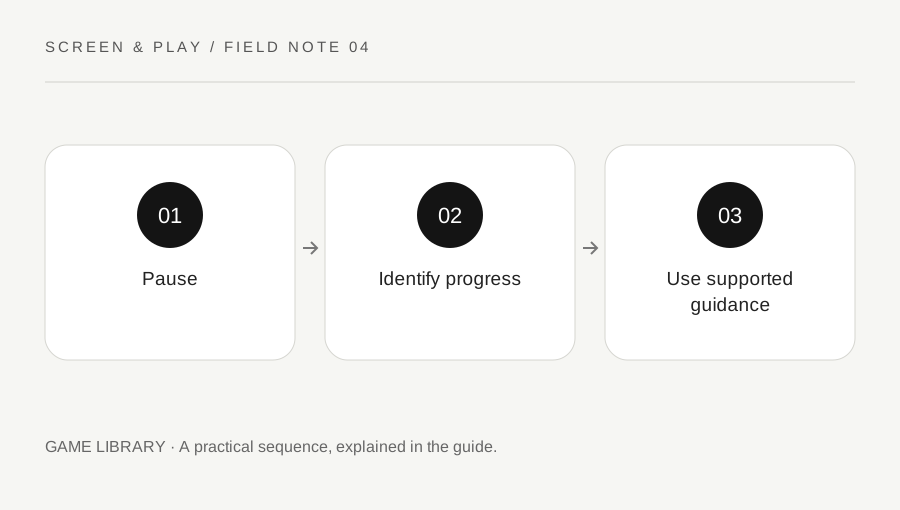
Original explanatory diagram. Examples illustrate a method or decision; they are not claims of personal testing.
Read the warning as a data decision
Steam explains that a cloud conflict appears when relevant local files differ from the cloud version and the system cannot automatically choose which to keep. Do not treat the window as a routine launch interruption. Read the displayed choices and timestamps, and avoid clicking simply to get into the game faster.
If you are uncertain, do not continue playing on several devices while investigating. New progress can make the history harder to understand. Note the game, account, device and exact message. A screenshot kept privately can preserve the details without exposing account information in a public forum.
Reconstruct the last actual session
Write down where you last played, what progress you remember and whether the device was online when the game closed. Compare that account of events with the displayed file dates. A later timestamp is useful evidence, but it should be considered alongside your behaviour rather than selected blindly. Time-zone or clock confusion can make a simple comparison misleading.
For an illustrative two-device case, you may have completed a chapter on a laptop during an offline journey and later opened the desktop copy at home. The desktop recent launch does not necessarily represent the chapter progress you want. Identify the meaningful save state before making a replacement decision.
Confirm what this game synchronises
Check the store page and developer guidance for the specific game. Steam Cloud support can include different files or settings depending on the developer implementation. The presence of a cloud feature does not prove that every save, mod, configuration or cross-platform state is included. Avoid assuming that two operating systems share compatible progress.
If the developer documents a safe backup process, follow that exact guidance before changing files. Do not rename or delete unknown save folders based on instructions for another game. Keep source copies separate from working changes. This article deliberately avoids a universal file path because game storage arrangements differ substantially.
Resolve the underlying sync issue first
Steam advises addressing an inability to sync before launching, because ignoring the warning can create conflicts or lost progress. Check the official Steam and game help for the exact error and connection situation. Avoid treating disabling cloud sync as a guaranteed repair; it changes where progress is stored and can create a different problem.
When you can identify the intended state, use the supported conflict choice with full awareness of what it will replace. If the evidence remains unclear, stop and seek game-specific help rather than experimenting through repeated launches. Steam notes that support has limited ability to recover lost data. No guide can promise recovery after the desired version has been overwritten.
Change the device-switching routine
After a normal session, close the game through its supported route and allow synchronisation to finish before moving to another device. Check for a completed status rather than assuming closing the lid means everything reached the cloud. Offline play needs particular care when reconnecting. Keep backups where the game supports them.
Make a brief note of any title-specific limitation, such as a platform difference or separate save system. Recheck that information after major changes rather than relying on an old workaround forever. The useful long-term habit is to notice sync warnings early and preserve context, so a future conflict becomes an informed decision rather than a hurried guess.
A practical checklist
Choices are saved in this browser. Reset them here or clear this site’s browser storage.
Questions that come up
Should I always pick the newest timestamp?
Consider timestamps alongside your actual sessions and progress. A recent launch does not automatically identify the save you want.
Can Steam guarantee recovery?
No. Steam describes limited recovery ability. Avoid promises that a lost or overwritten save can always be restored.
Does Steam Cloud include every game file?
No. Developers decide what is synchronised, and cross-platform behaviour can differ.
References & scope
Background references checked on 18 October 2026. Worked examples and diagrams are original teaching material.