Free Game Storage Without Confusing Installed Games and Saved Progress
When storage is full, first identify what occupies it and what you need to preserve. Installed game data, saved progress and captured media are different categories, and the supported management options vary by platform.
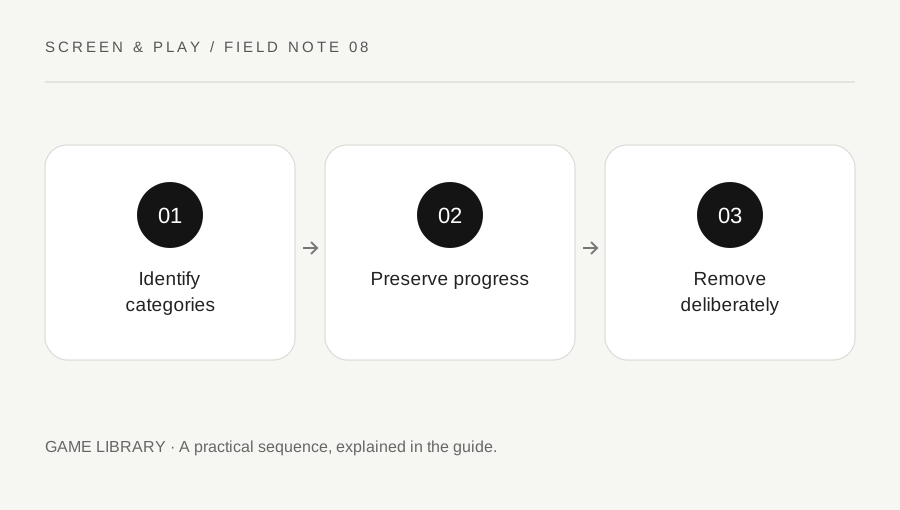
Original explanatory diagram. Examples illustrate a method or decision; they are not claims of personal testing.
Inspect the platform storage view
Use the platform built-in storage management screen rather than deleting unfamiliar folders. Note which categories are large: games, downloadable content, captures, saved data or other files. A large installation and a small save file serve different purposes. Do not assume that removing something with the game name always has the same effect.
For an illustrative console with limited free space, one finished game may occupy far more room than many save files combined. Check the actual storage display instead of guessing from how long you played. The first useful decision is which installed content you are unlikely to need soon, not which progress you are willing to lose.
Check how the specific game stores progress
Read the platform and developer guidance for the title. Some progress is local, some uses supported cloud storage and some belongs to an online account. Subscription requirements and sync behaviour can differ. Do not treat a cloud icon as proof that every save and setting is safely duplicated.
Before removing content, verify any supported backup or sync status and address warnings. On Steam, for example, developers control which files participate in Steam Cloud. On consoles, saved-data management has its own controls. Avoid deleting saved data as a routine way to gain installation space unless you deliberately want that outcome and understand the consequences.
Compare supported removal and movement options
Check whether the platform allows uninstalling a game, removing optional components or moving installation data to compatible storage. PlayStation describes separate options for PS5 game data and saved data, with different capabilities for USB extended storage and other locations. Read the current support table before purchasing or formatting another drive.
Do not assume every external drive can run every game directly. Movement and play support can differ by game generation and storage type. Formatting can erase the selected drive, so verify the target and preserve existing important data through an appropriate process. If you only need a little space, removing unneeded captures may be simpler than changing the whole storage arrangement.
Make one deliberate change and confirm it
Choose the exact item in the supported storage interface and read the confirmation text. Check whether it refers to application data, an optional pack, captures or saved data. If the wording is unclear, stop and consult the official guide. Avoid selecting several categories at once just because they share a title.
After the change, check the available space and whether the remaining library behaves as expected. Keep any required disc, account entitlement or subscription conditions in mind for future reinstallation. A platform ability to redownload purchases does not mean every removed subscription title will remain available indefinitely. Access rights and local installation are separate questions.
Plan the next installation with room to update
Read the current game storage requirements and leave practical space for updates and the platform normal operation. The installed size shown today may change. Keep a small rotation of games you actually play instead of installing everything in the library. This is a convenience choice, not a reason to erase meaningful progress.
Review captures periodically and export valued media through a supported method before removing it. Keep notes only for unusual game-specific backup arrangements. A clear distinction between installation, progress and media makes future cleanup easier and reduces the chance that a hurried attempt to fit a new game destroys something you intended to keep.
A practical checklist
Choices are saved in this browser. Reset them here or clear this site’s browser storage.
Questions that come up
Is uninstalling a game the same as deleting its save?
They are different categories on many platforms, but follow the exact platform and game guidance rather than assuming identical behaviour everywhere.
Can every game run from an external drive?
No. Platform, game generation and storage type determine supported use.
Should I delete save files to make room?
They may provide little space compared with installations. Preserve progress unless you intentionally choose to remove it and understand the result.
References & scope
Background references checked on 18 October 2026. Worked examples and diagrams are original teaching material.